
Crop | Resize | Sticker | Annotate | Filter | Adjust

Toolbar shown in the editor: Crop, Resize, Sticker, Annotate, Filter, and Adjust.
Tool overview
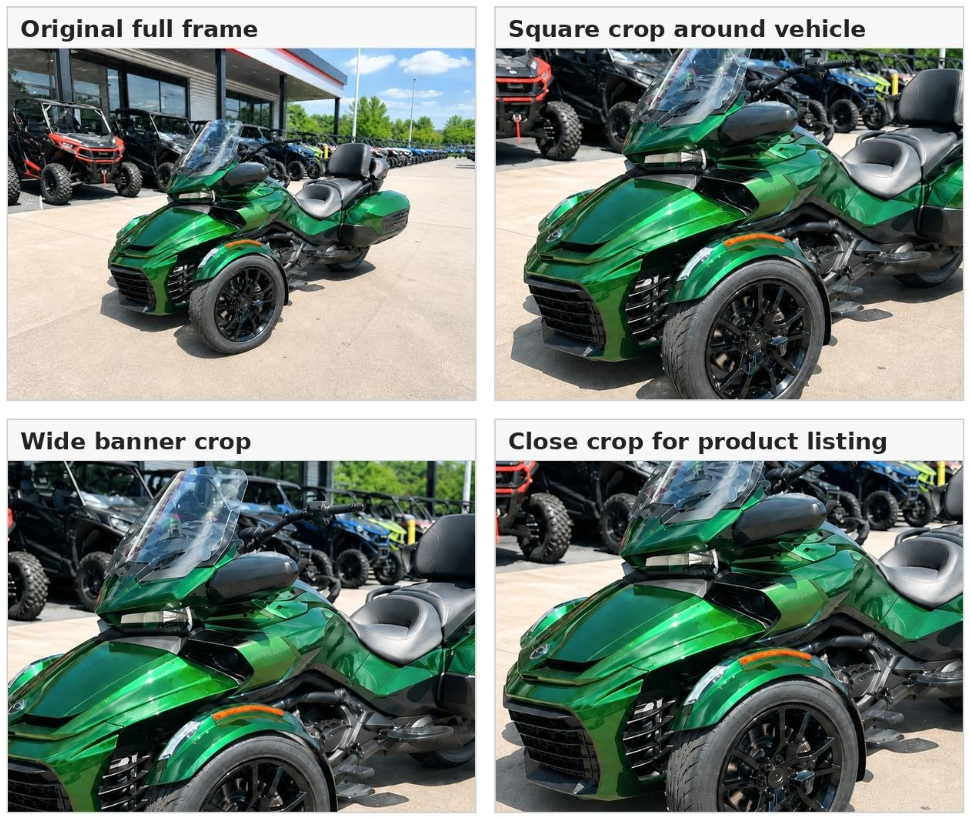
Crop
What it does: The Crop tool changes what part of the photo is visible. It can remove empty space, trim distractions, straighten a slightly tilted image, or force the image into a consistent aspect ratio.
Best for: Inventory photos that need a cleaner frame, website banners that need a wide format, square social media posts, and images where the vehicle should be larger in the frame.
Common controls and options
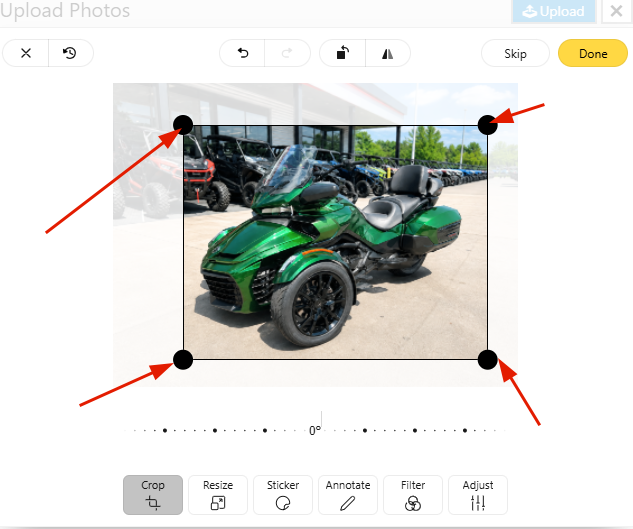
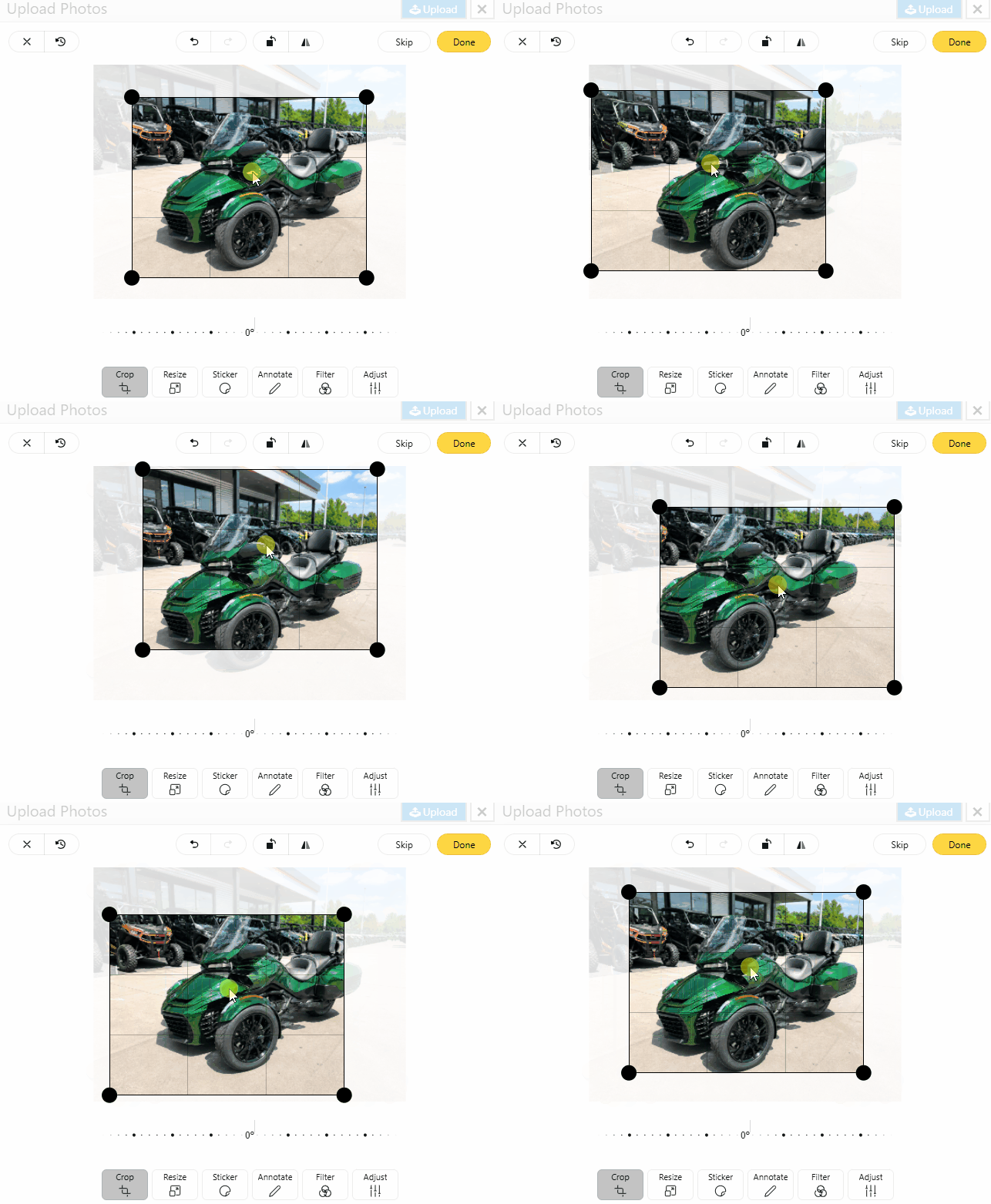
Crop handles: Drag the corners or edges to define the visible area.
Reposition: Drag crop area to center the subject inside the cropped view.
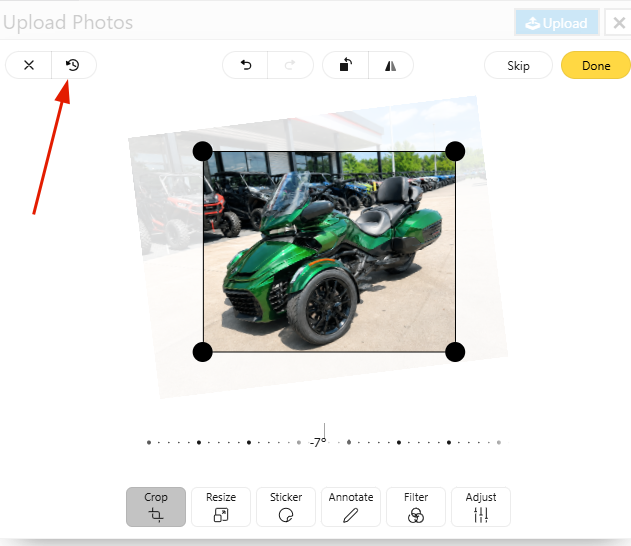
Straighten/rotate: Correct a tilted horizon or dealership-lot angle before finalizing the crop.
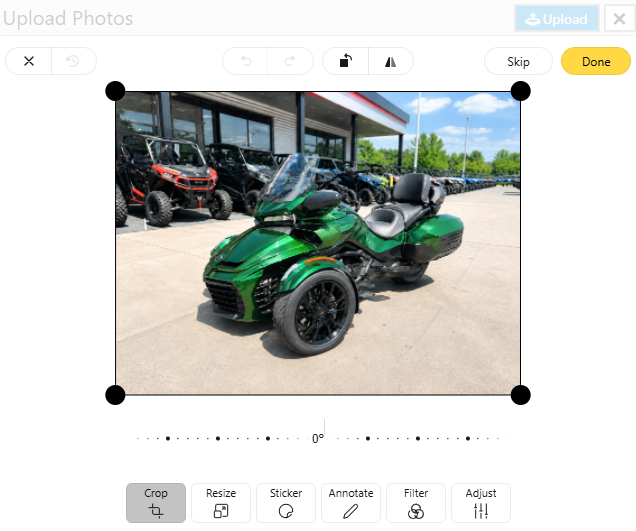
Reset: Return to the original framing when the crop is too tight.

Tips for clean inventory/help-article images
Avoid cutting through tires, mirrors, windshields, or passenger seats unless you intentionally want a close-up detail shot.
Leave enough breathing room around the vehicle so stickers or sale banners can be added later.
For slideshows, crop wider and keep the subject away from the edge where text or buttons may appear.
Resize
What it does: The Resize tool changes the final pixel dimensions of the image.
Best for: Creating consistent image sizes for website inventory, reducing large photos for faster upload/load time, generating thumbnails, or matching a required banner size.
Common controls and options
Width and height: Enter target dimensions in pixels.
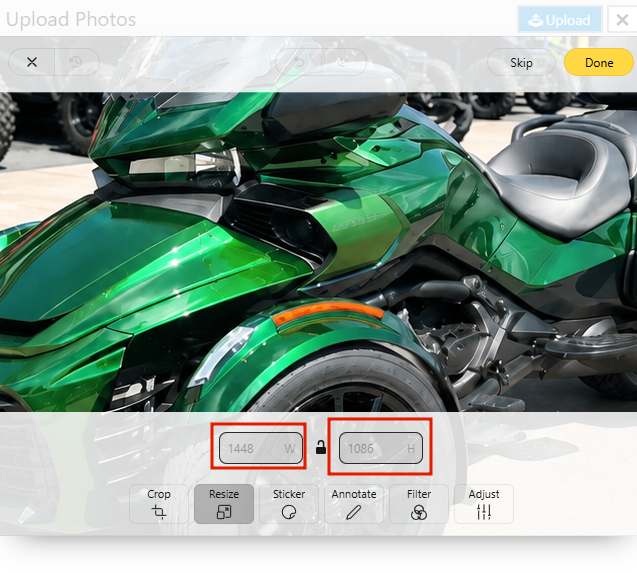
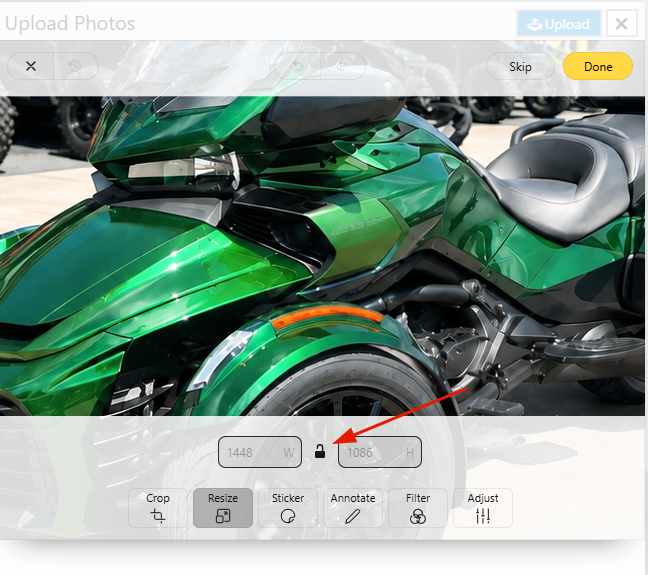
Maintain aspect ratio: Click the lock before resizing to keep the aspect ratio intact.
Basic workflow
Resize after cropping so the final frame is already correct.
Keep the aspect ratio locked unless a specific creative effect or exact box fill is required.
Use larger dimensions for detail pages and smaller dimensions for thumbnails or preview cards.
Tips for clean inventory/help-article images
Do not enlarge small images too much; upscaling can make details look soft.
For inventory images, consistent dimensions across all units create a cleaner shopping experience.
Sticker
What it does: The Sticker tool adds a graphic element on top of the photo. Stickers can be promotional badges, holiday sale art, logos, icons, or even transparent PNG overlays.
Best for: Seasonal sale graphics, “New Arrival” badges, dealership branding, inventory tags, and event-specific promotions.
Common controls and options
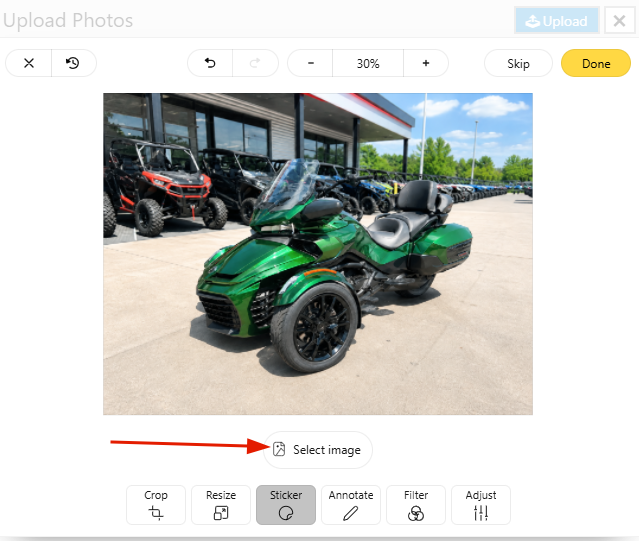
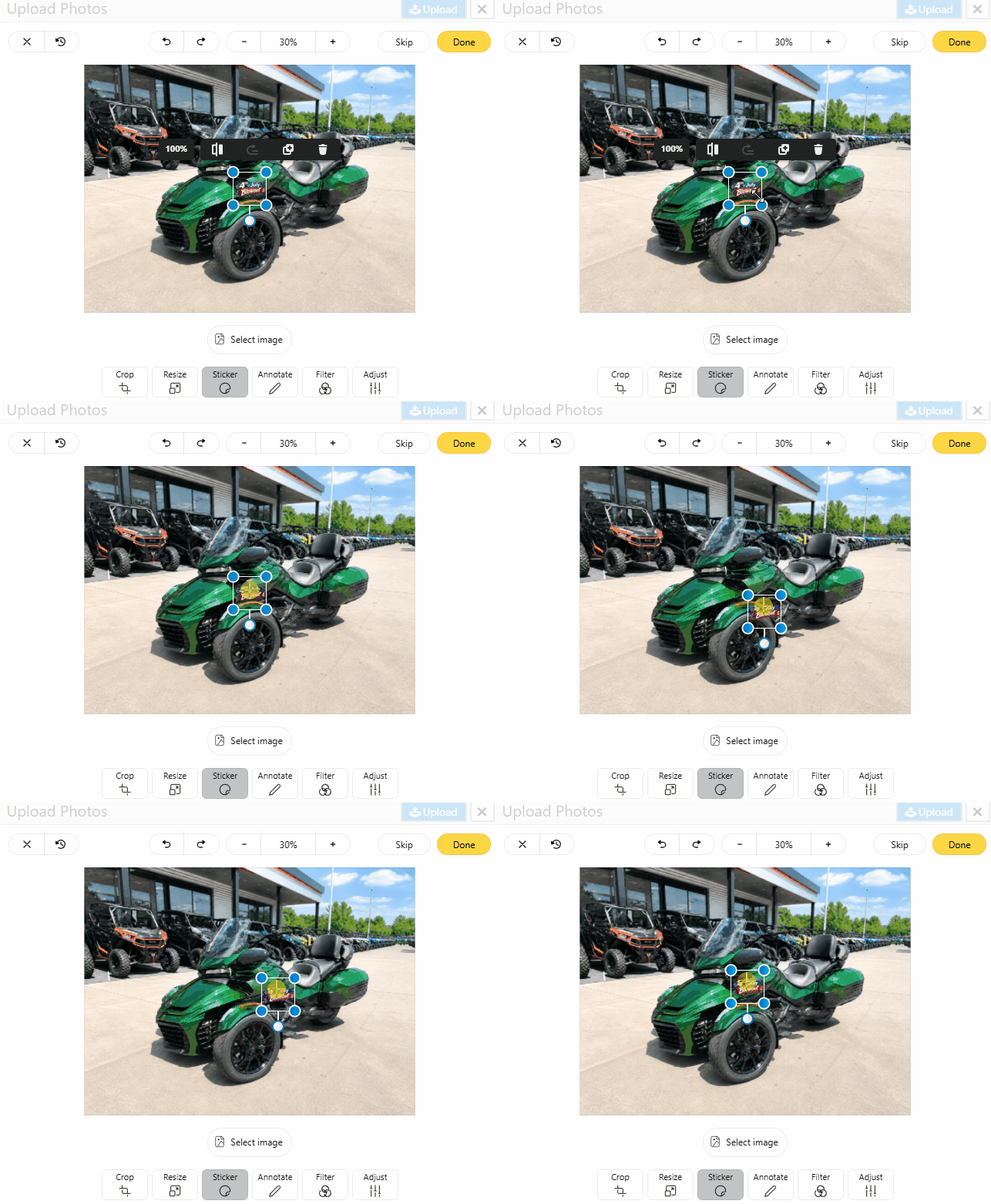
Select Image: Place an image or preset sticker onto the photo.
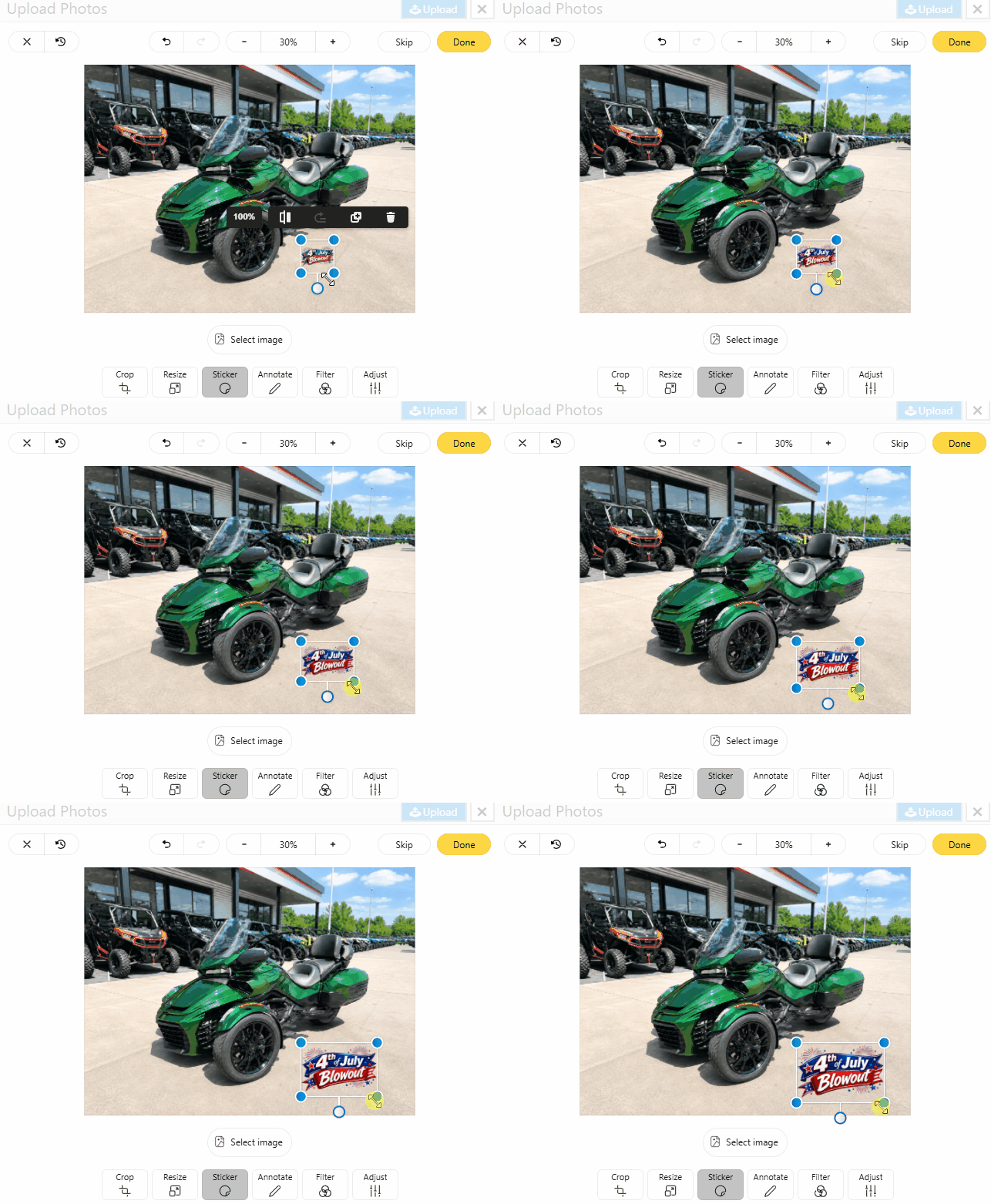
Move: Drag the sticker to the desired position.
Scale: Resize the sticker so it supports the message without covering the product.
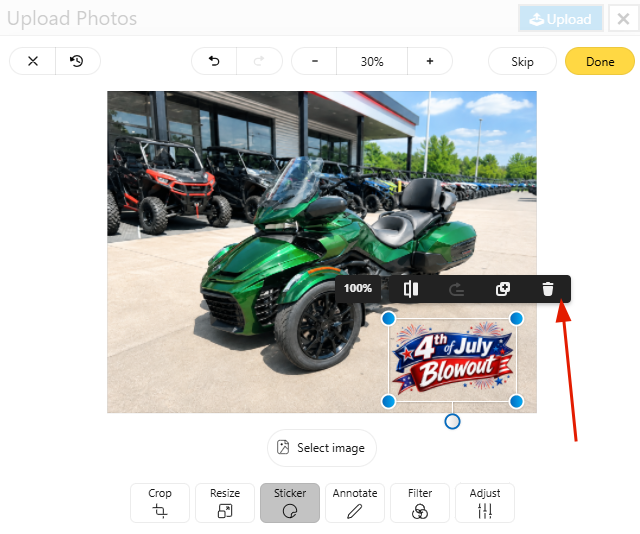
Delete/reset: Remove the sticker
Basic workflow
- Select an image to use as the sticker/overlay.
- Place it where it will be visible but will not cover the vehicle’s primary selling features.
- Resize the sticker to match the output format; smaller for listing images, larger for banners.
Tips for clean inventory/help-article images
Keep sale art away from the vehicle, price, stock labels, and “View Details” buttons
Use transparent PNG artwork when possible so the overlay looks integrated instead of boxed-in.
Maintain consistent sticker placement across all images shoppers recognize it quickly
Annotate
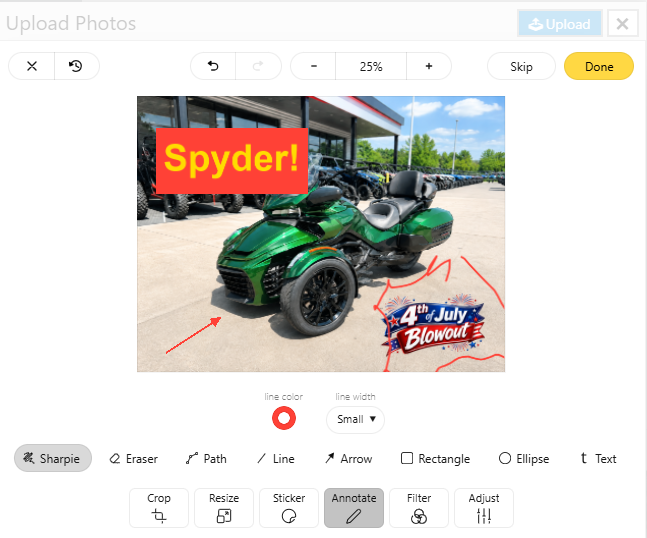
What it does: The Annotate tool adds text, arrows, or instructionalsymbols. Typical annotation options include text labels, arrows, rectangles, circles, freehand drawing, and blur/mosaic effects.
Best for: Calling out product features, marking damage or features of the vehicle, explaining a detail, or hiding distracting/sensitive information in the background.
Controls and options
Sharpie: Create annotations by hand
Eraser: Erase pieces of handwritten annotations
Path: Click points to create an outline
Line: Draw a straight line
Arrow: Create an arrow
Rectangle: Create a solid rectangle
Ellipse: Create a solid circle/oval shape
Text: Add labels, instructions, or feature names.
Basic workflow
- Decide what detail the reader should notice first.
- Add one clear annotation type, such as an arrow and label.
- Use contrasting text or a semi-transparent background behind labels for readability.
- Keep the number of callouts low unless the image is specifically a diagram or training aid.
Tips for clean inventory/help-article images
Use annotations in help articles to teach a concept, not just decorate the image.
Avoid placing text on busy backgrounds without a label box or stroke.
Filter
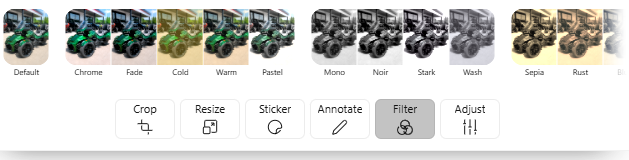
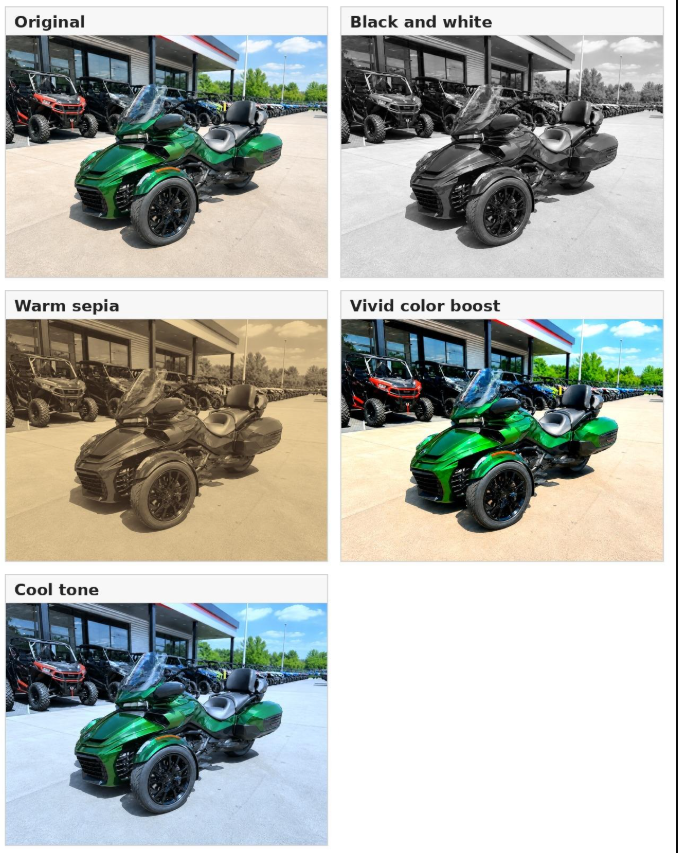
What it does: The Filter tool applies a preset look to the entire image. Filters are quick, one-step visual treatments that can change color tone, contrast, and overall style- these controls are similar to what you may be used to from other image upload applications and tools.
Best for: Creating a campaign mood, converting an image to black-and-white, warming up a photo, or quickly making a photo more vivid for a promotion.
Common controls and options
Preset gallery: Choose a predefined visual style.
Basic workflow
- Apply the crop and resize first so the filter is judged on the final image area.
- Select a filter that supports the purpose of the photo: accurate inventory or dramatic promotion
- Check the final image on a typical screen to ensure the vehicle still looks natural.
Tips for clean inventory/help-article images
For inventory photos, prioritize accurate color over dramatic style.
For seasonal banners or ads, a stronger creative filter can be acceptable when the vehicle remains recognizable.
Avoid mixing many filter styles across the same inventory gallery.
Adjust
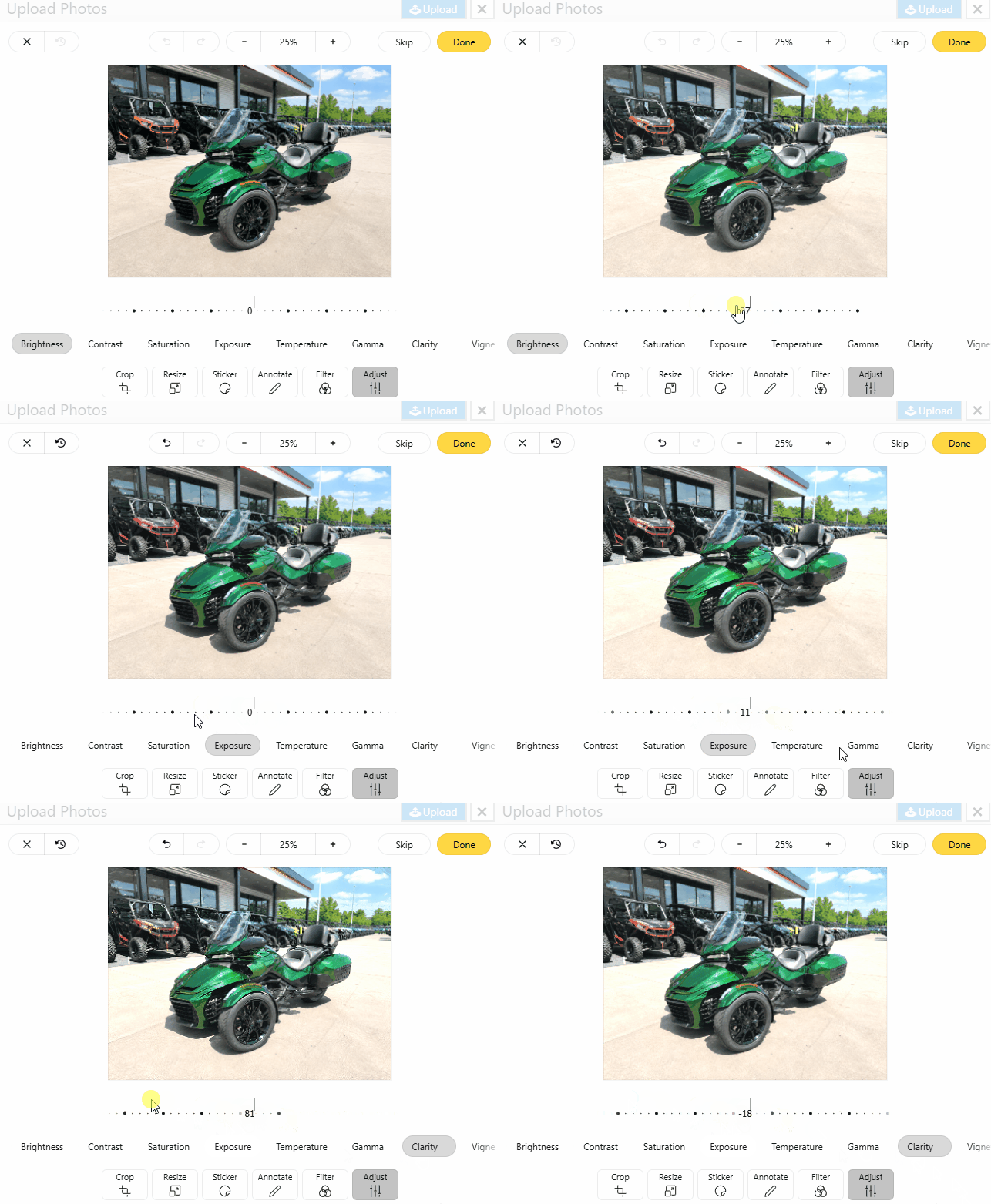
What it does: The Adjust tool provides manual fine-tuning controls. Instead of applying a preset look, you can directly change visual properties such as brightness, contrast, saturation, and sharpness.
Best for: Correcting photos taken in harsh sunlight, making a dark image easier to see, reducing dull colors, sharpening product details, or balancing a photo after cropping.
Common controls and options
Brightness/exposure: Lighten or darken the whole image.
Contrast: Increase separation between light and dark areas, or reduce harsh shadows.
Saturation/vibrance: Make colors stronger or more muted.
Sharpness/clarity: Enhance edges and detail, especially on wheels, seats, and body panels.
Temperature/tint: Warm or cool the image when the lighting color feels off.
Reset: Return sliders to their original values if the edits become too strong.
Basic workflow
- Start with small adjustments and compare often against the original.
- Correct exposure first, then contrast, then color, then sharpness.
Tips for clean inventory/help-article images
A little adjustment usually looks more professional than a heavy edit.
Watch for blown-out highlights on shiny body panels and windshield reflections.
Avoid oversharpening; it can create halos around vehicle edges and text overlays.